Creating A Quiz with Quizli AI
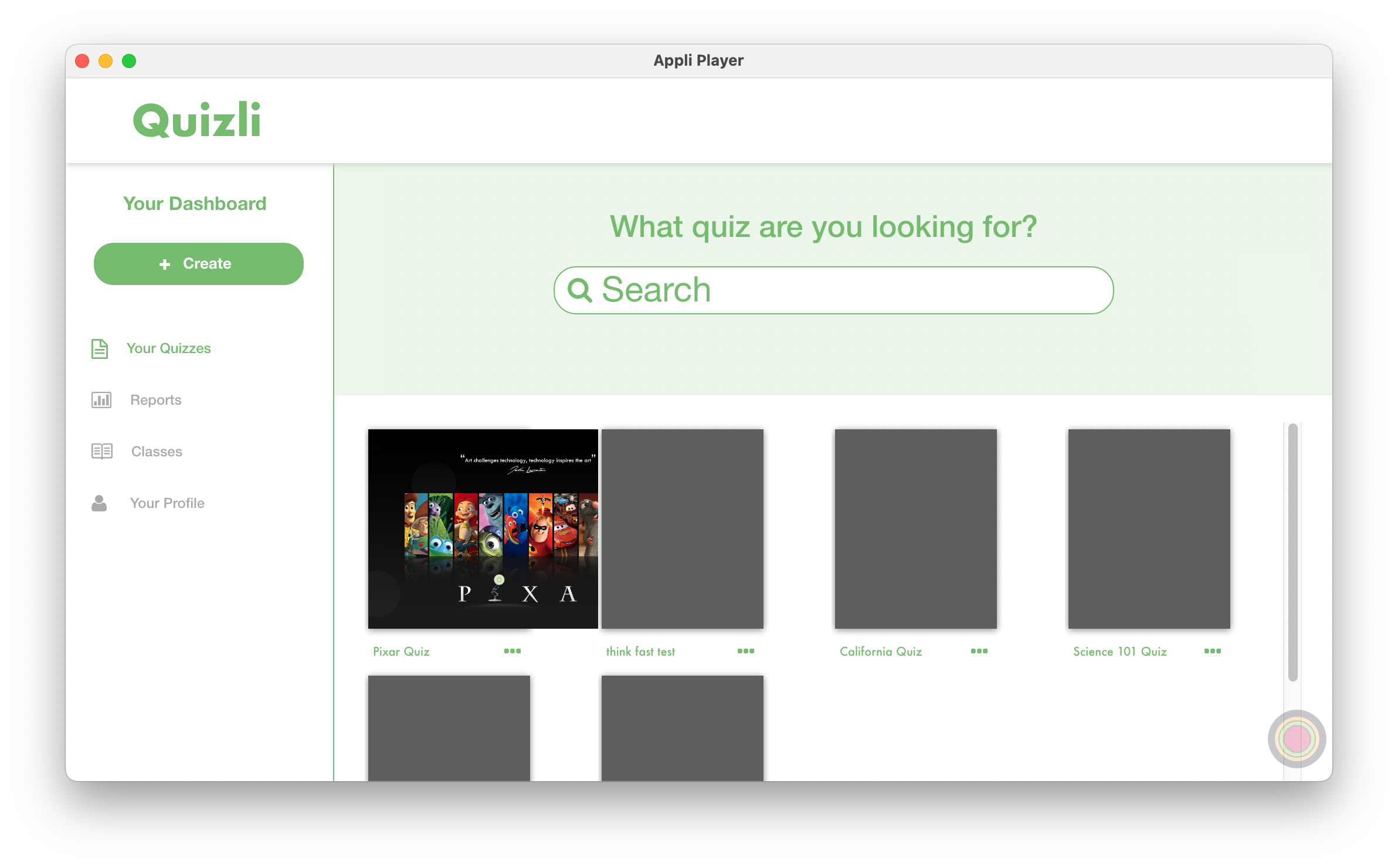
Click the + Create button on the sidebar to create a new quiz.
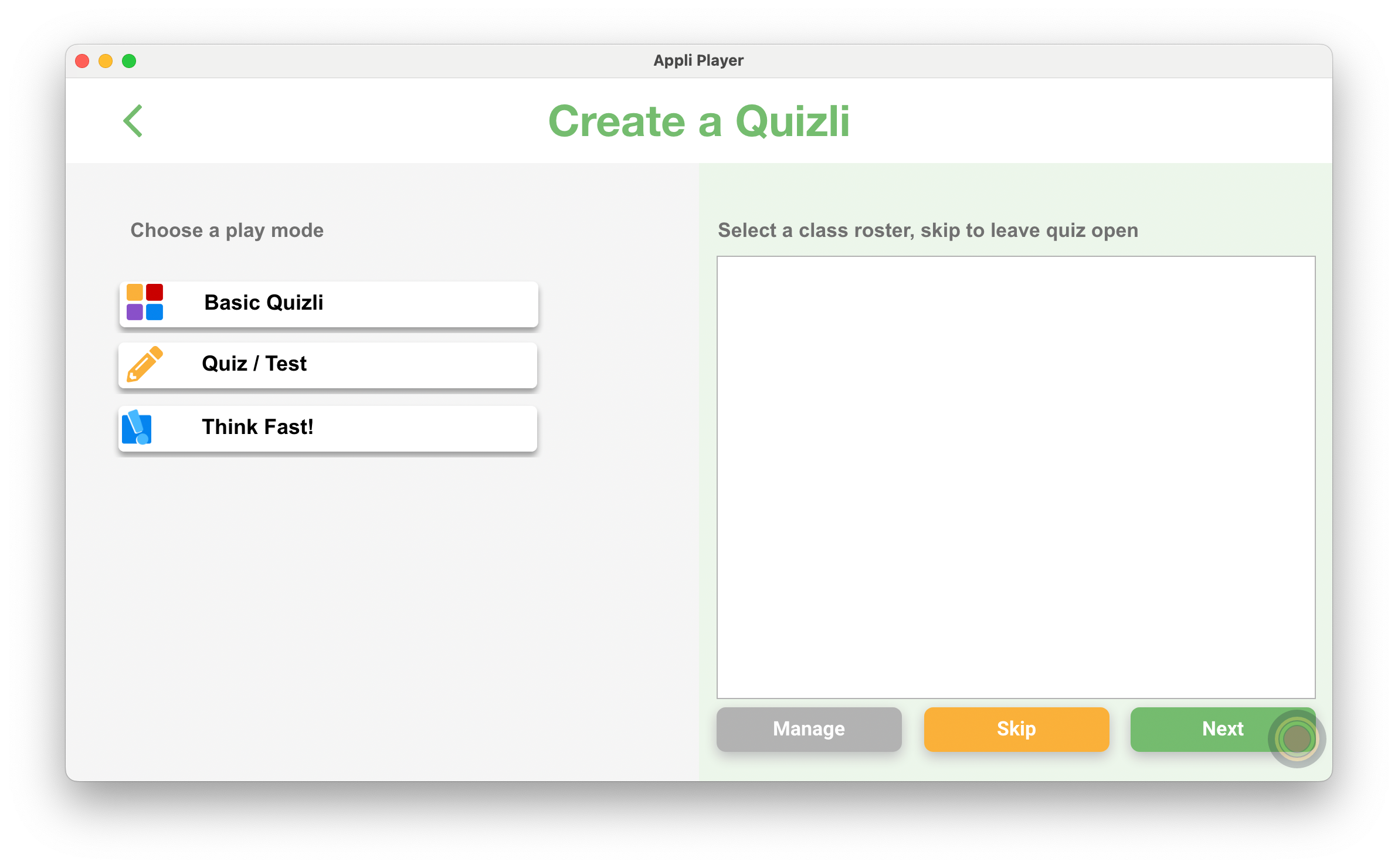
Selecting the play mode
Quizli supports three play modes:
- Basic Quizli:
- Quiz / Test:
- Think Fast:
After selecting the play mode, you can either select a class roster or leave it open so that it is available to all classes.
Click Next to move to the next step.
New Quiz
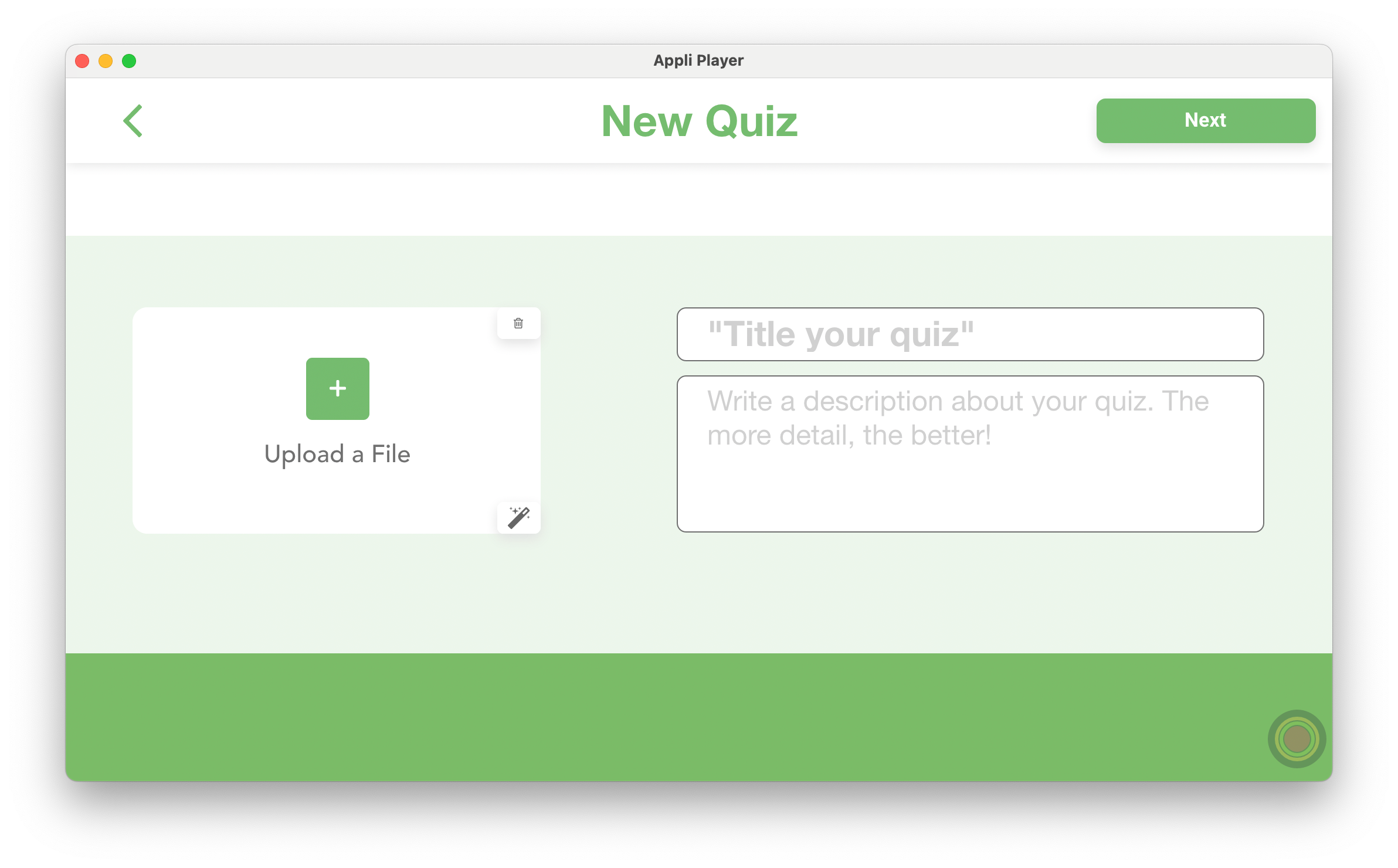
In this screen, enter the information about your quiz. This information will be used to populate the main screen of Quizli teacher app. Don't forget to add a nice image to your quiz.
Note
Create with AI: Clicking the small magic wand will use generative AI to create a thumbnail for you.
Click on the top right Next button to move forward to the questions list.
Questions List
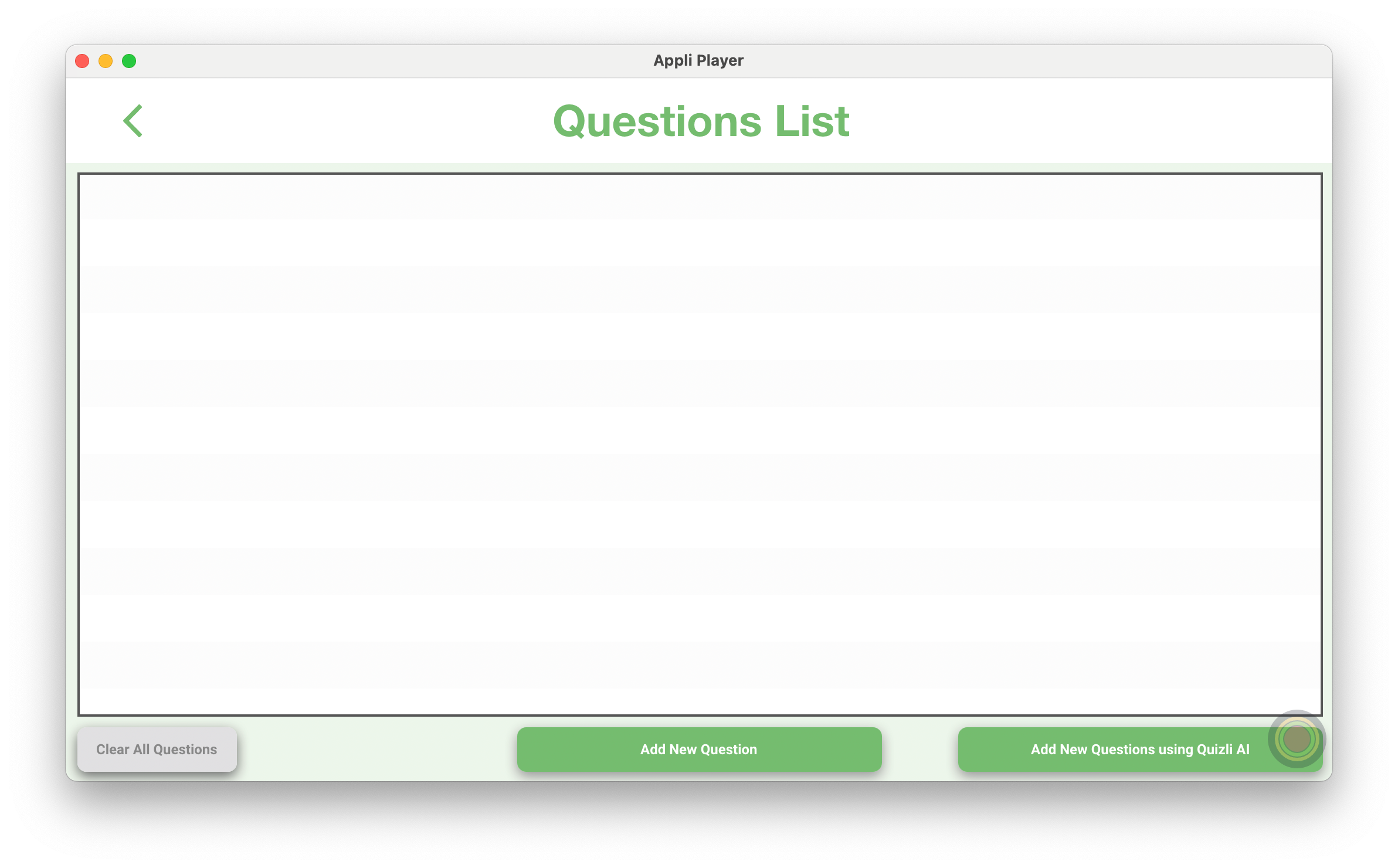
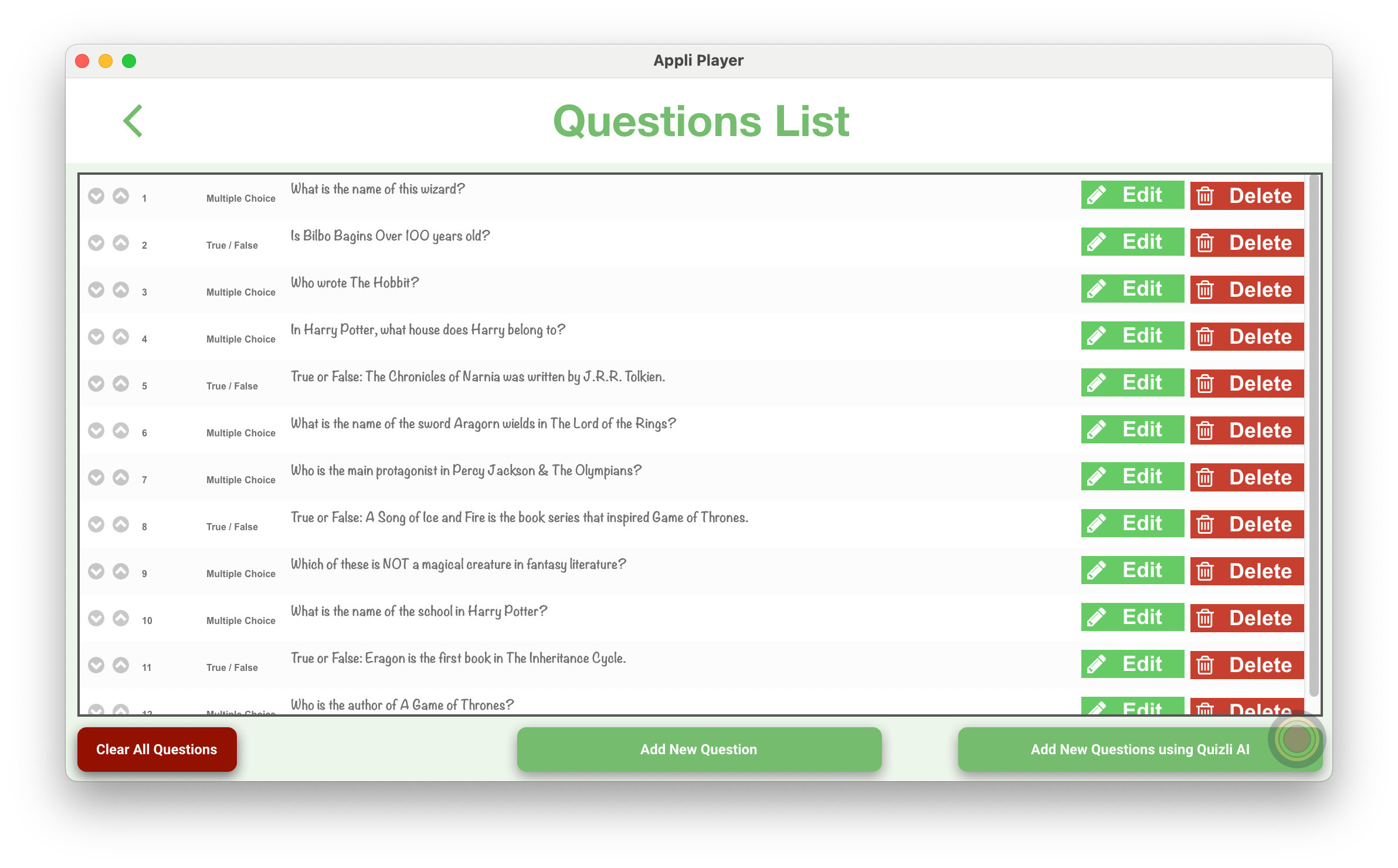
The list that occupies most of the screen will display your questions.
- Clear All Questions: will delete all your questions. Be careful with this one.
- Add New Question: allows you to manually enter the information to create a new question.
- Add New Question using Quizli AI: let's you leverage Quizli AI to create a question based on your input.
Let's dive deeper into the two ways of creating new questions.
Add New Question using Quizli AI
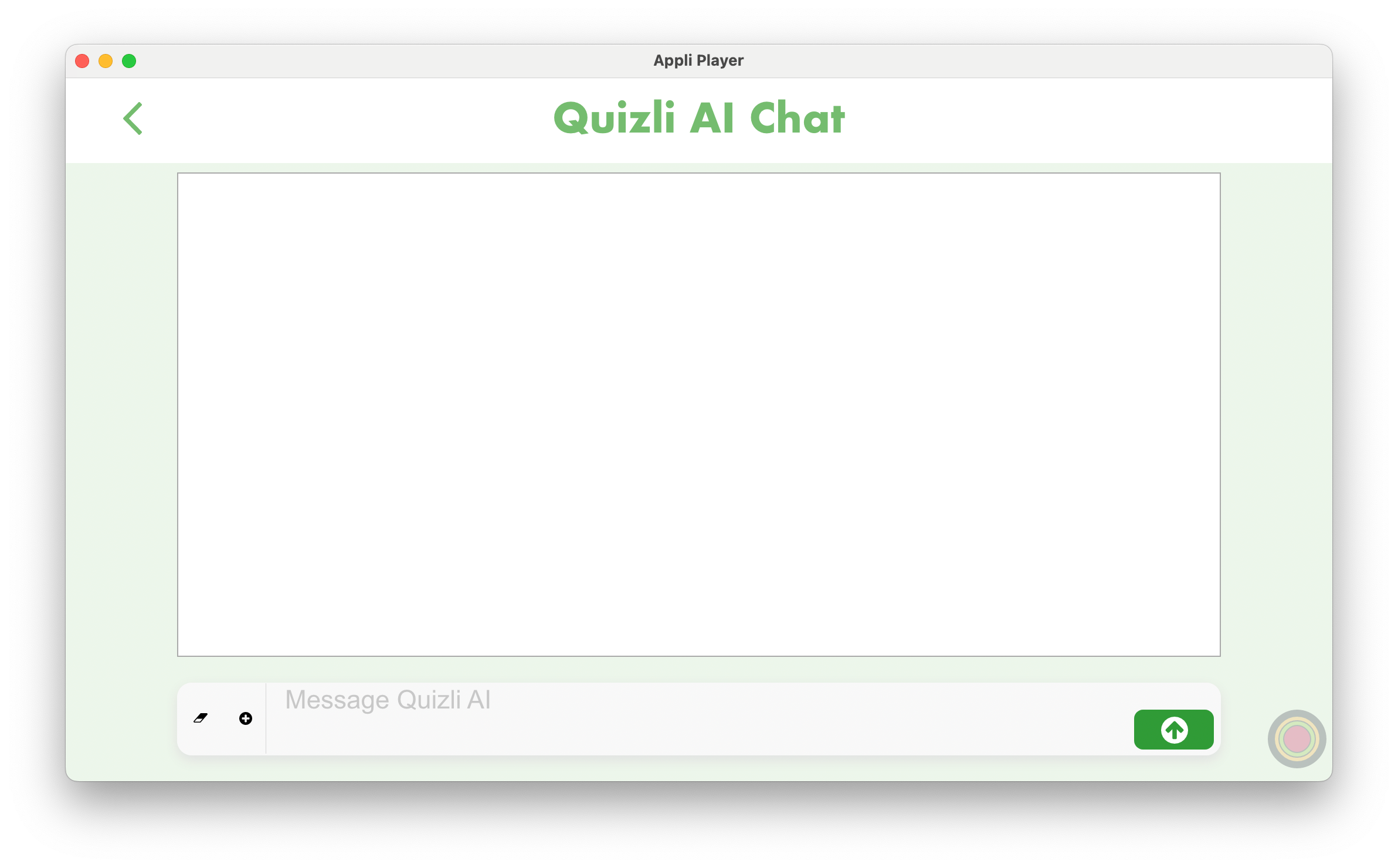
In this chat interface, you can request Quizli AI to create quizes for you. In the example below, I asked it to create a 10 questions fantasy books quiz for me.
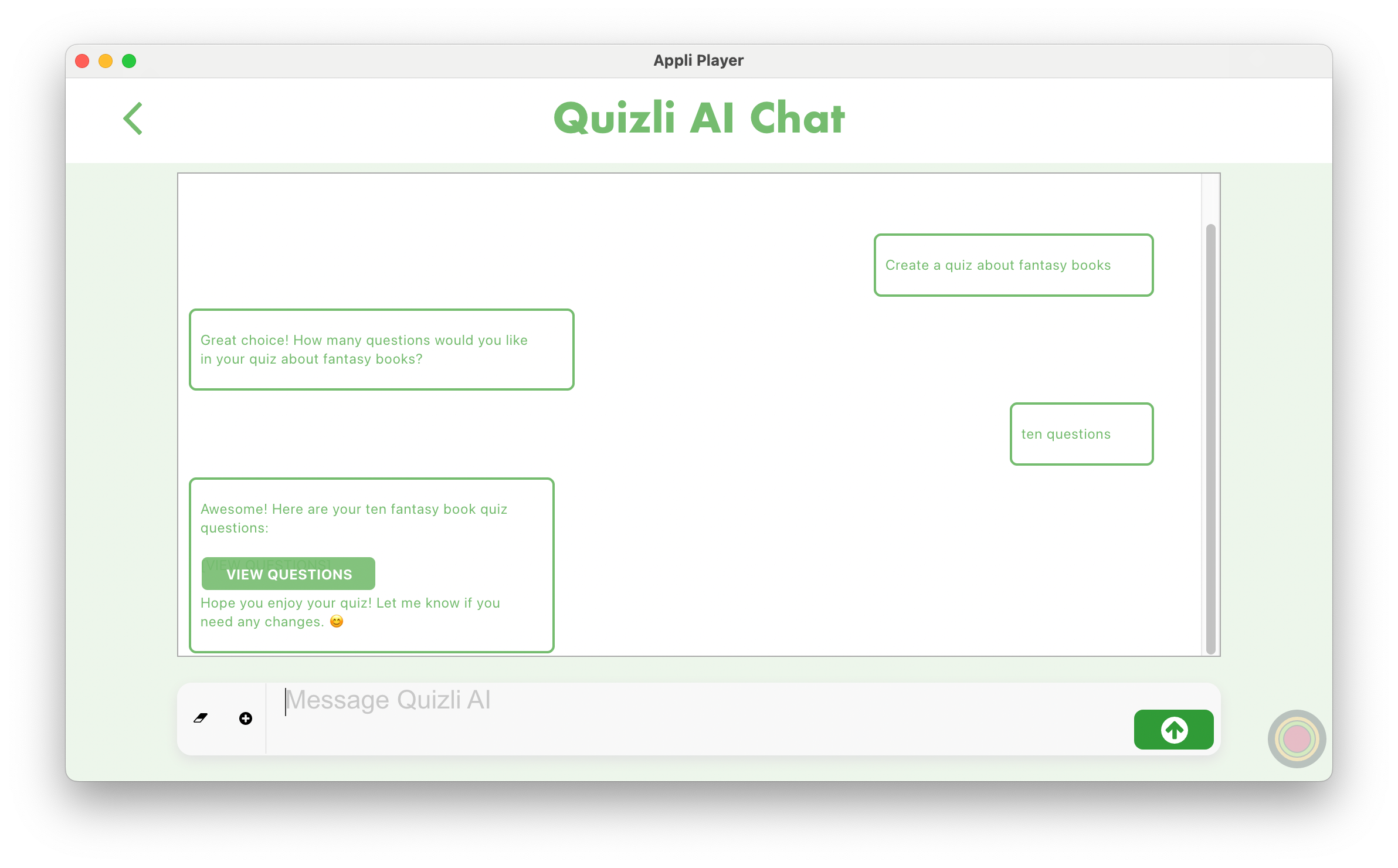
Once Quizli AI creates the questions for you, click the View Questions button to add them to the questions list. You can edit and customise the AI generated questions just like the manually entered ones.