Creating A Quiz
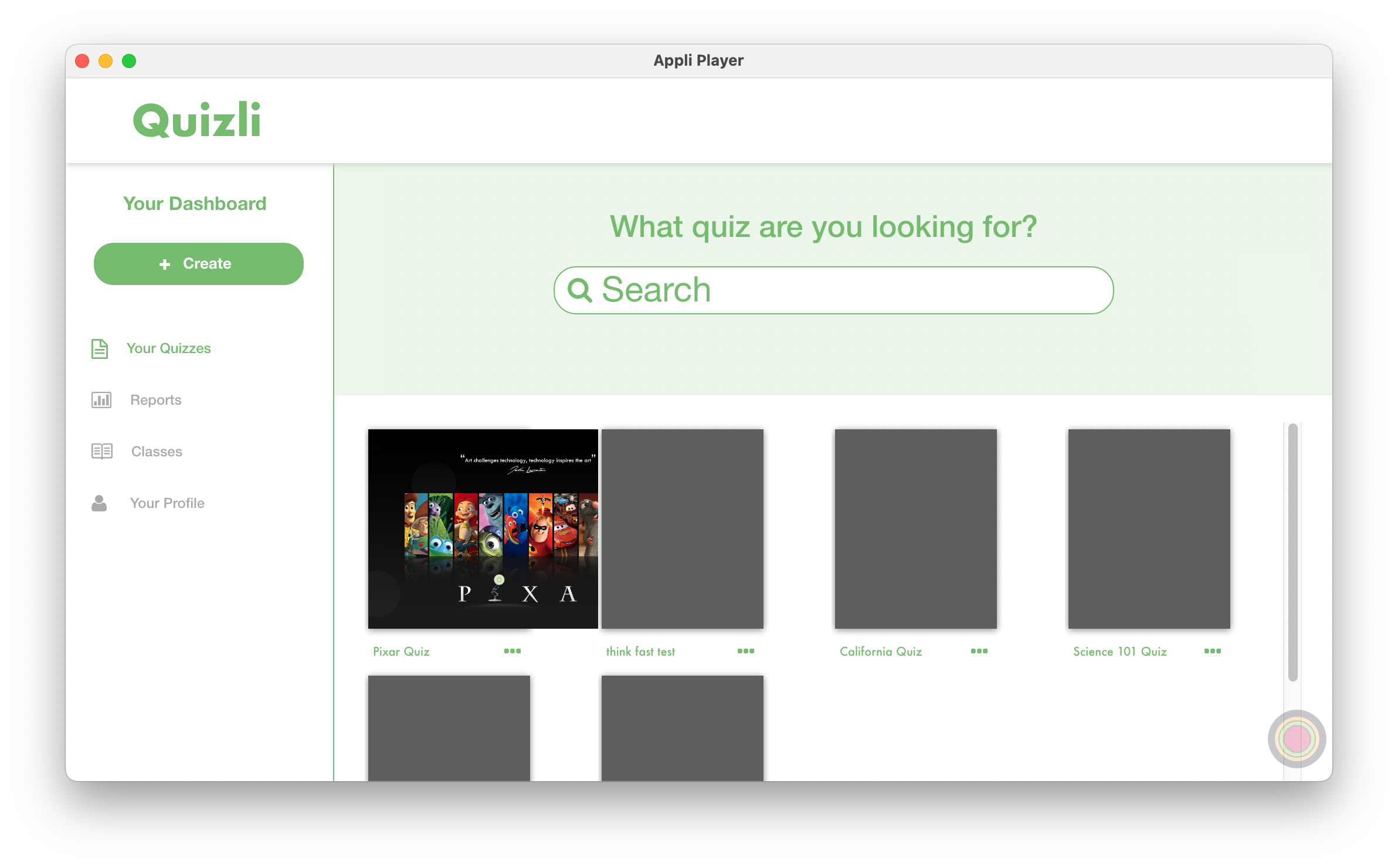
Click the + Create button on the sidebar to create a new quiz.
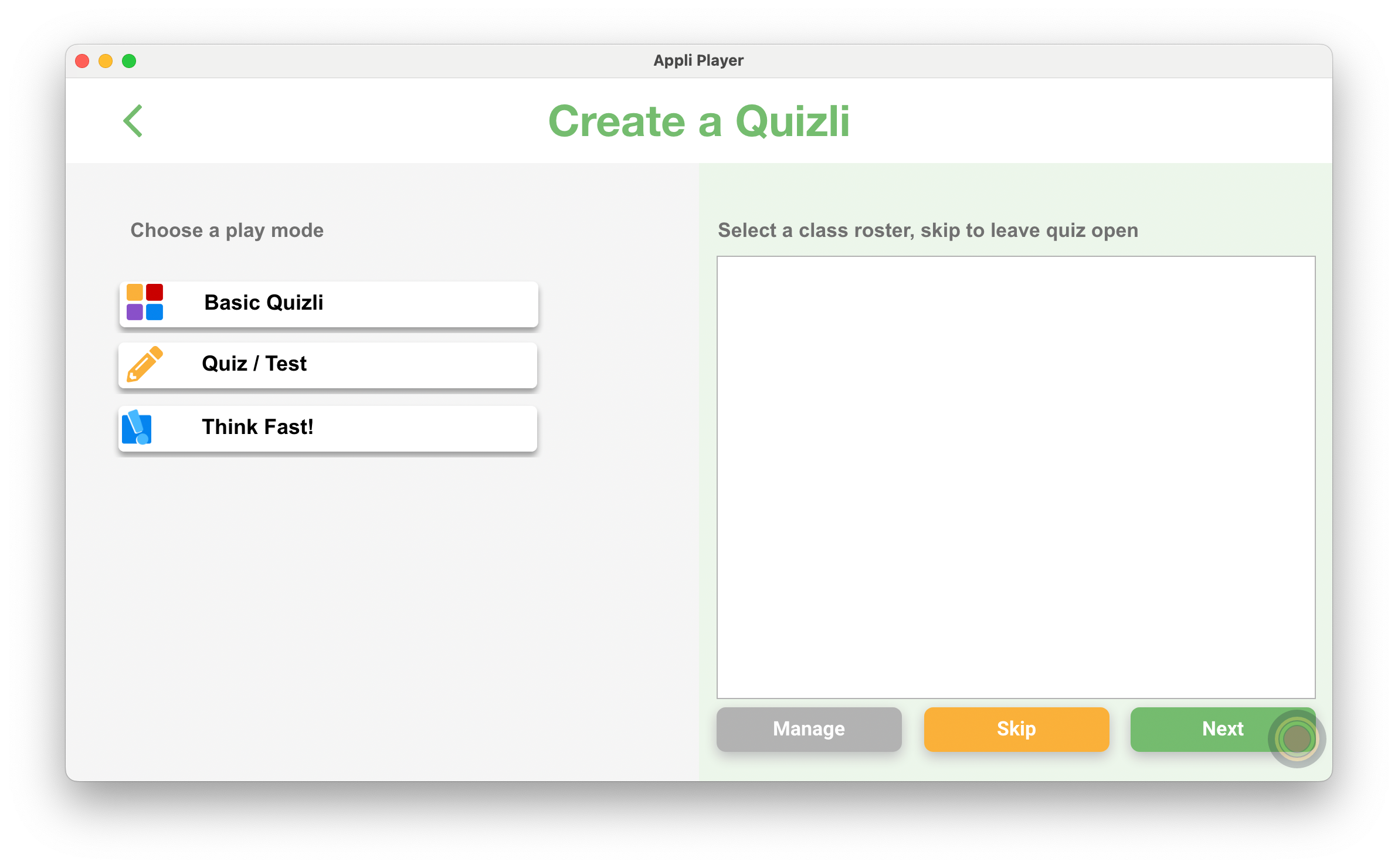
Selecting the play mode
Quizli supports three play modes:
- Basic Quizli:
- Quiz / Test:
- Think Fast:
After selecting the play mode, you can either select a class roster or leave it open so that it is available to all classes.
Click Next to move to the next step.
New Quiz
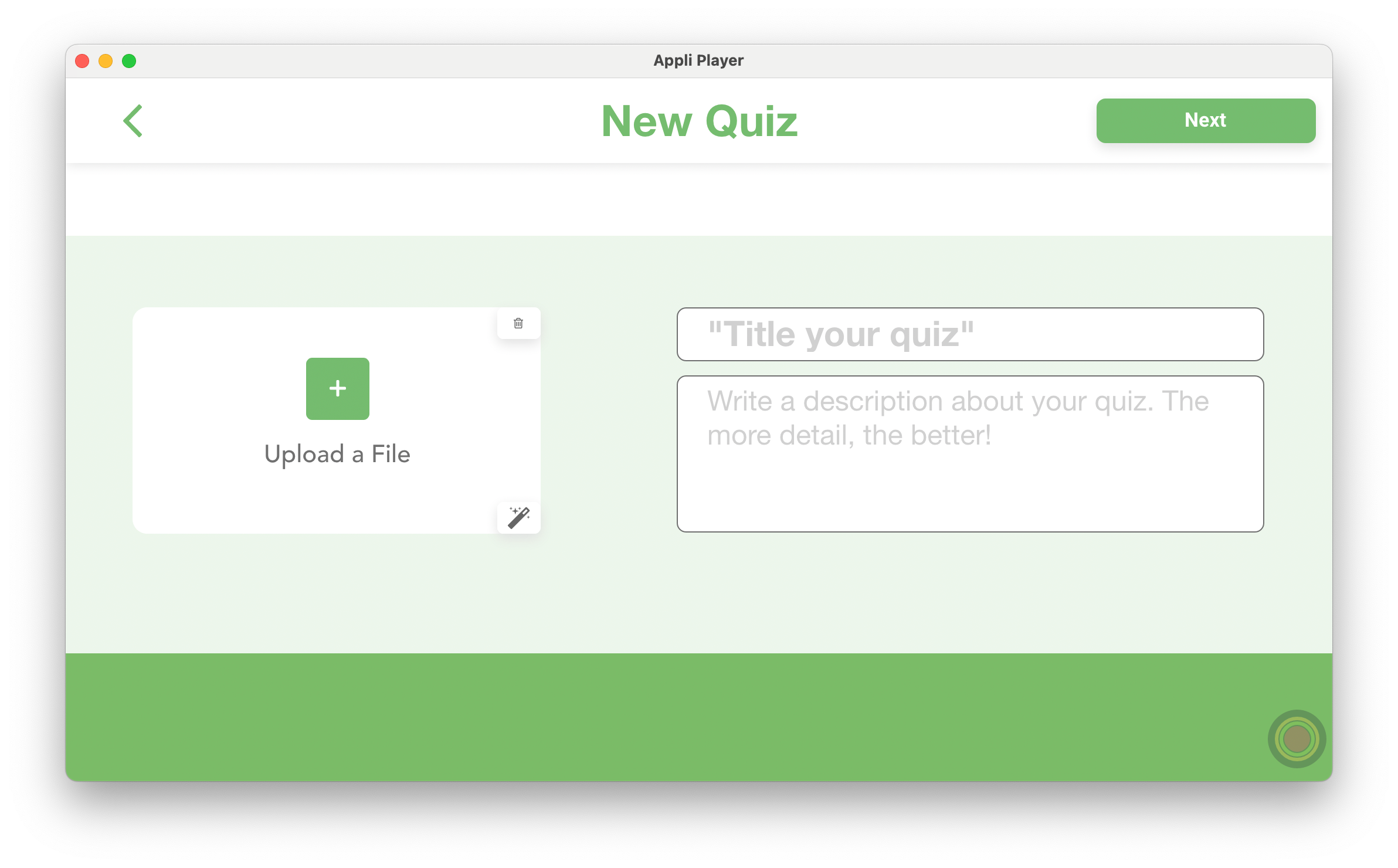
In this screen, enter the information about your quiz. This information will be used to populate the main screen of Quizli teacher app. Don't forget to add a nice image to your quiz.
Note
Create with AI: Clicking the small magic wand will use generative AI to create a thumbnail for you.
Click on the top right Next button to move forward to the questions list.
Questions List
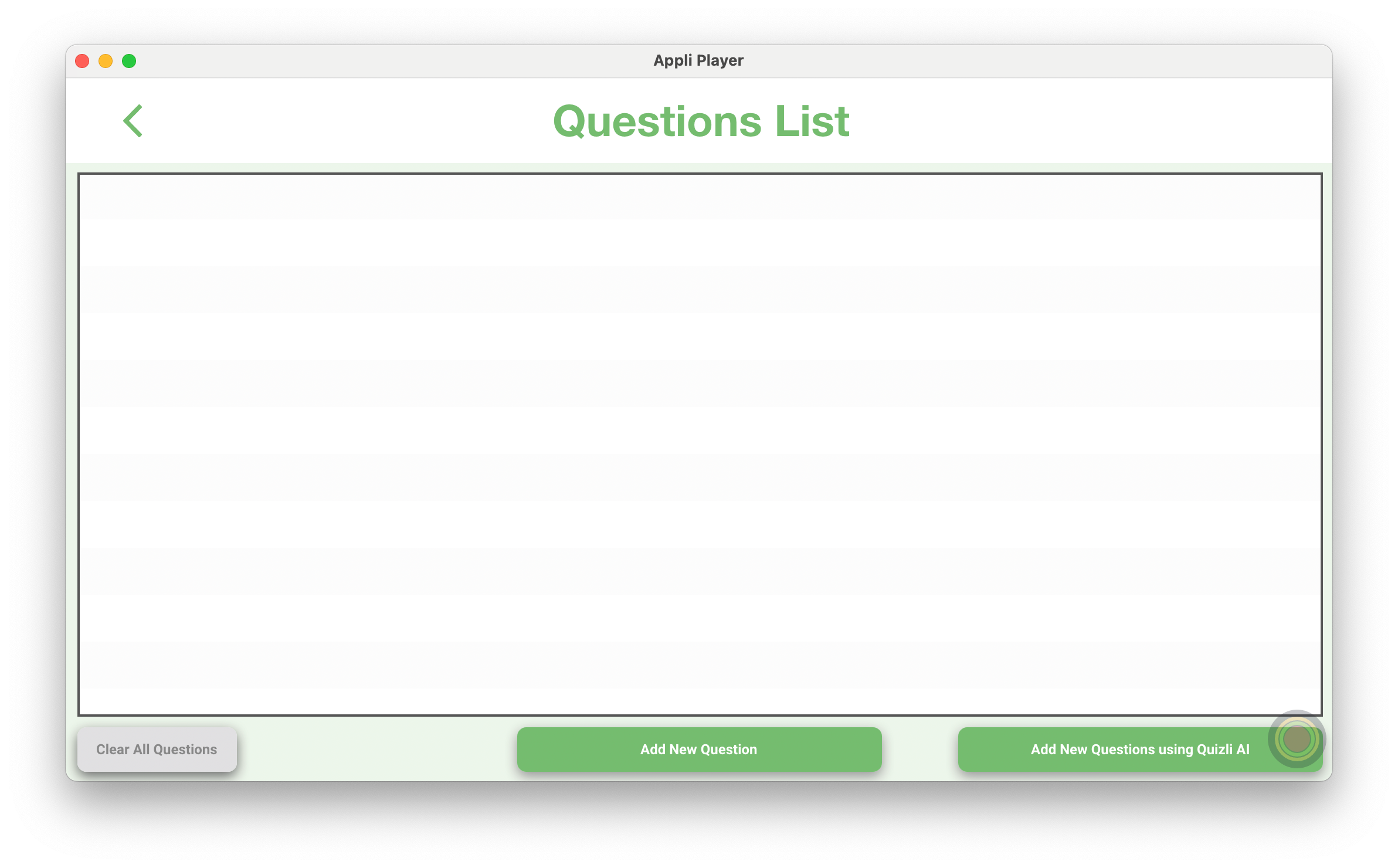
The list that occupies most of the screen will display your questions.
- Clear All Questions: will delete all your questions. Be careful with this one.
- Add New Question: allows you to manually enter the information to create a new question.
- Add New Question using Quizli AI: let's you leverage Quizli AI to create a question based on your input.
Let's dive deeper into the two ways of creating new questions.
Add New Question
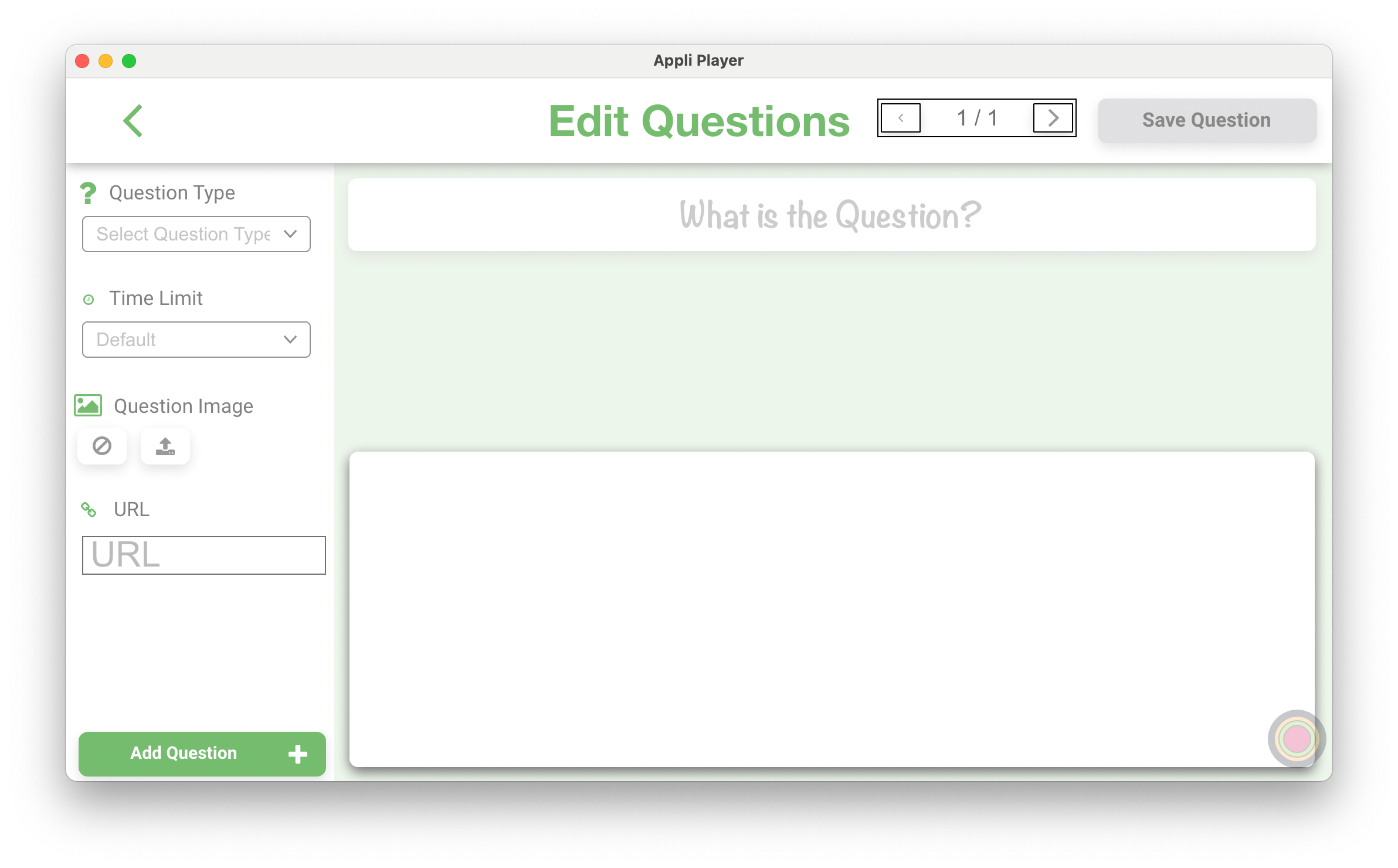
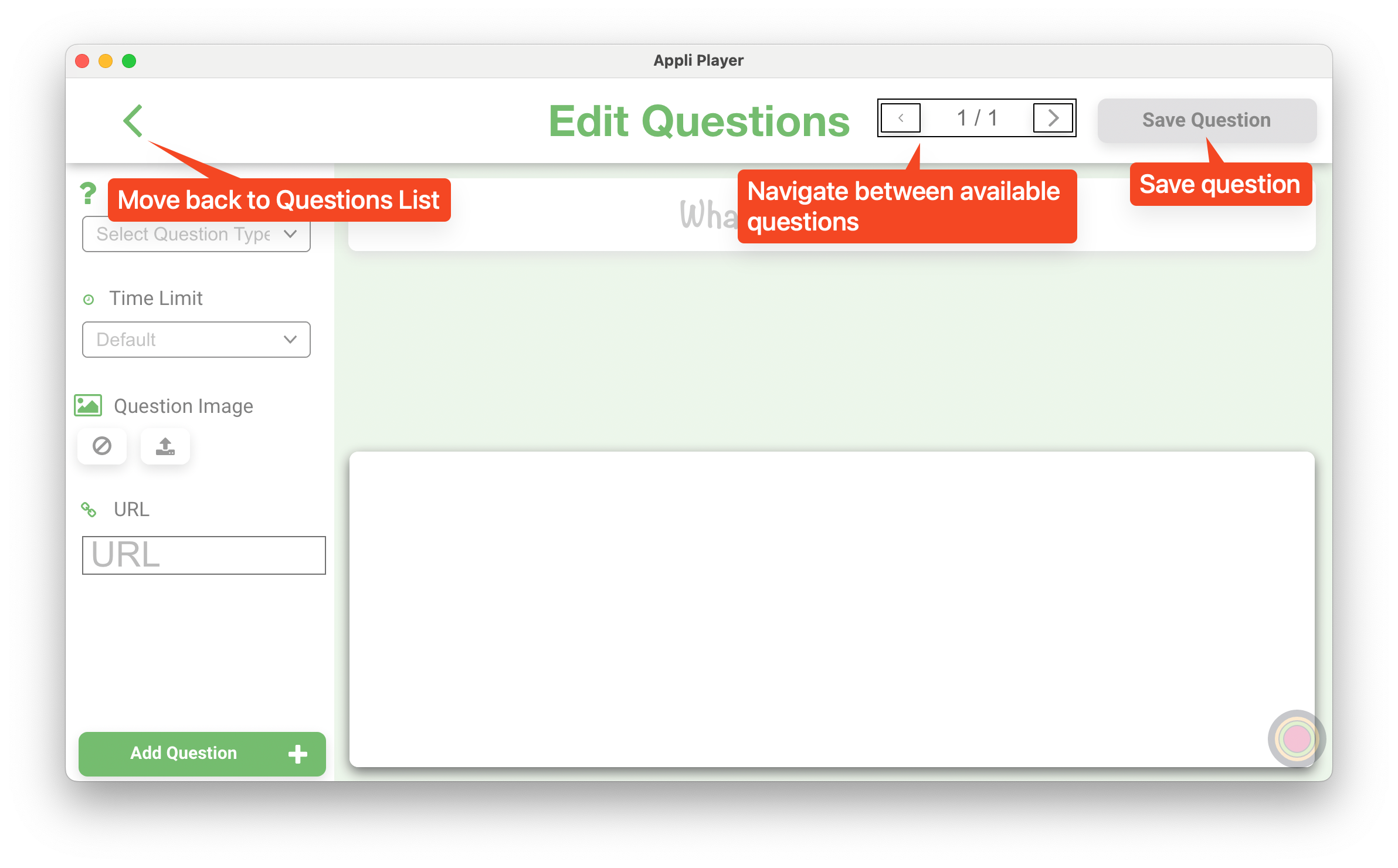
That is a complex screen and to better understand it, let us go over the various sections one at a time. The top bar of the screen contains the saving and navigation controls.
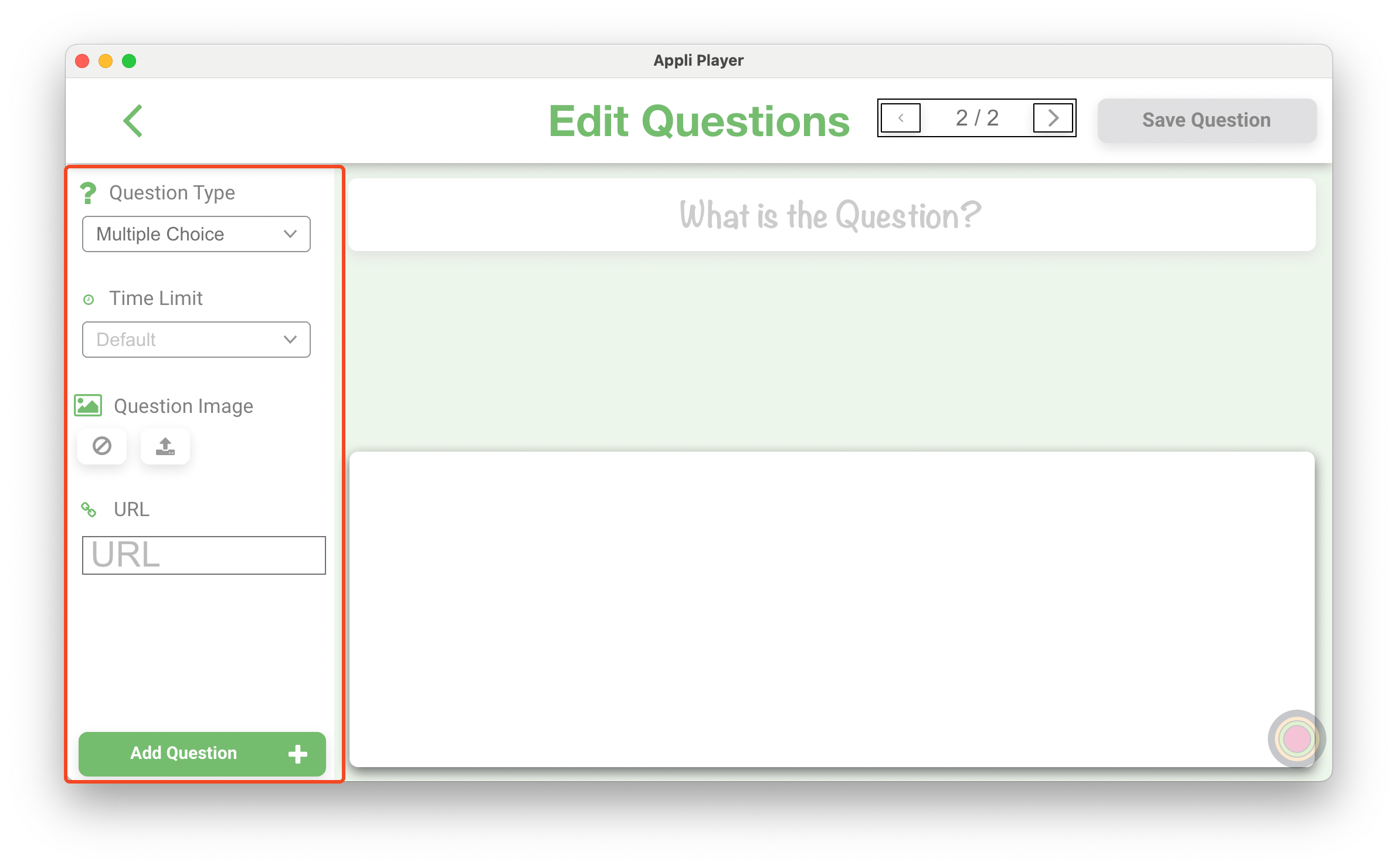
On the left there is a side panel that allows you to configure the question you're editing. You can change:
- Question Type: there are two types of questions, multiple choice or true/false.
- Time Limit: configures how long the student got to answer the question.
- Question Image: sets an image for the question.
- URL: sets a web address for the question.
Selecting a Question Type will change the interface to display the options appropriate to the selected option. Fill in your settings on the sidebar and your choices. Rememeber to use the checkbox to select what is the correct answer.
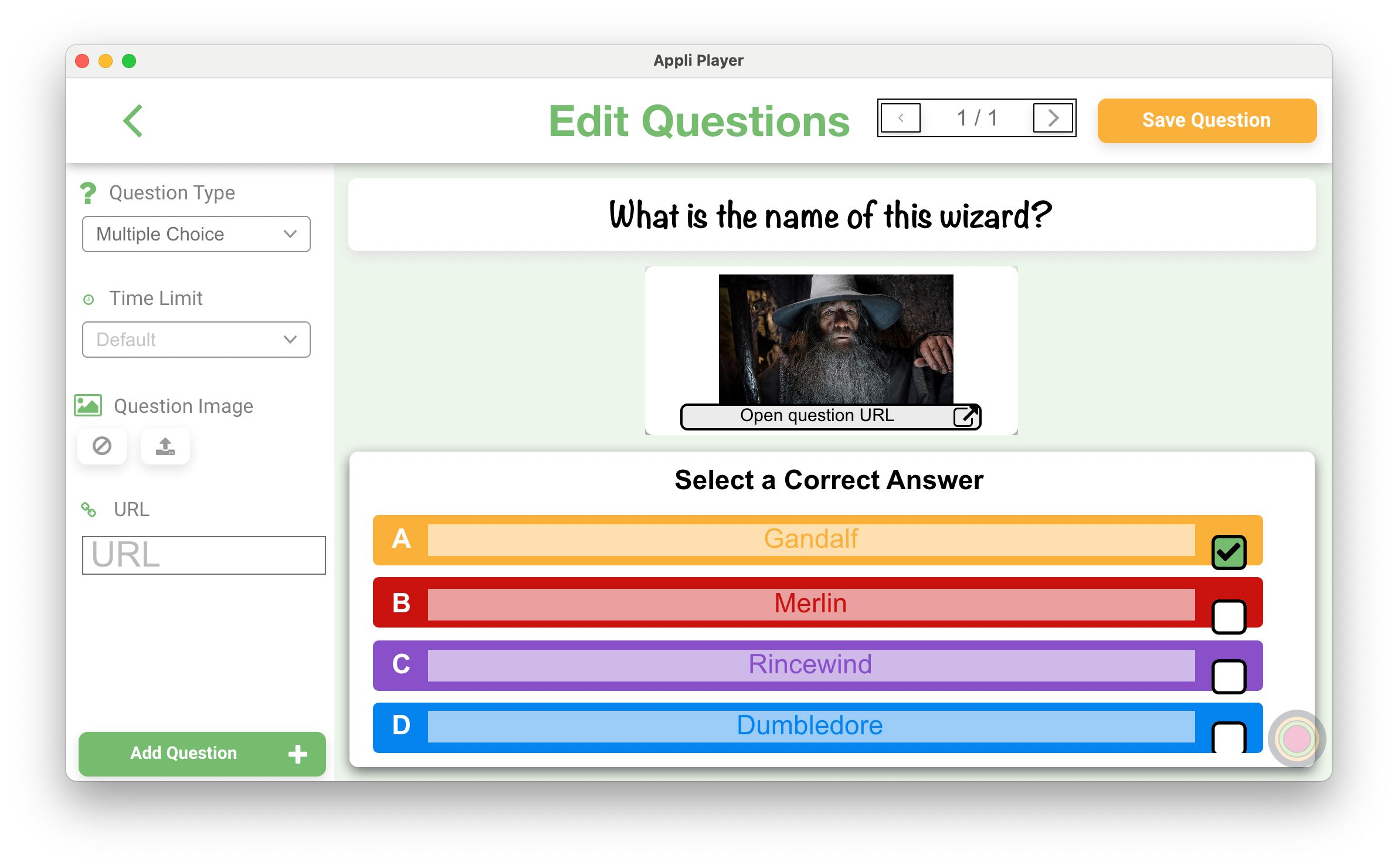
You can click Save Question on the top right corner to save your question, or click + Add Question on the bottom left which will save your question and then go back to this screen to add a new question.